
Secure Your Account
MailCub takes security and data protection seriously. Every user account is protected with a login password, and you have the option to enable Two-Factor Authentication (2FA) for an extra layer of protection. You can choose between:
- Authenticator app-based OTP (e.g., Google Authenticator, Microsoft)
- Email-based OTP (sent to your email each login)
How to Enable 2FA
- Log into your MailCub account.
- Navigate to: Profile → Settings → Manage Security.
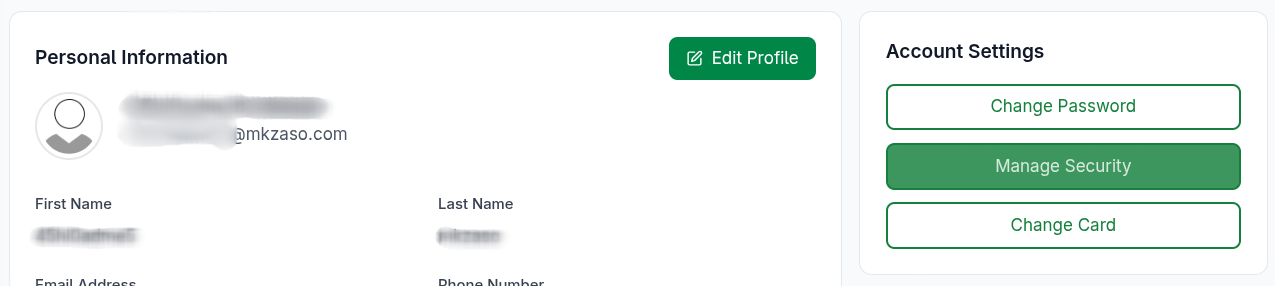
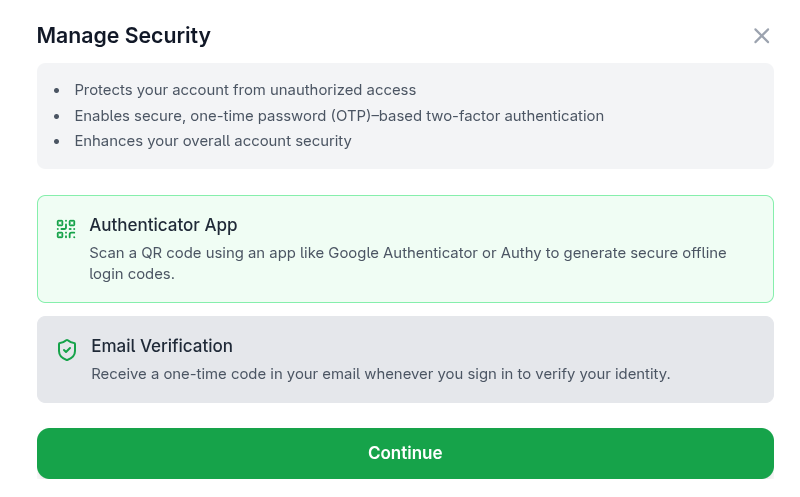
- Under the “Two-Factor Authentication” section, select your preferred method:
- Authenticator App (OTP via QR code)
- Email OTP (one-time code sent to your email)
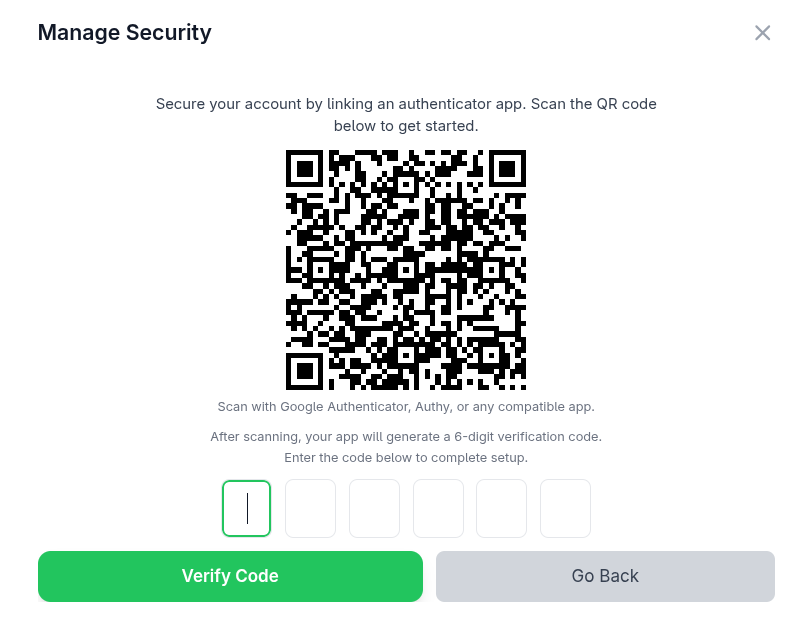
- If you selected Authenticator App:
- Scan the displayed QR code using your authenticator app.
- Enter the 6-digit code generated by the app.
- If you selected Email OTP:
- Click “Send OTP” and check your email for the code.
- Enter the code in the field to verify.
- Once verified, 2FA will be enabled for your account. From your next login and onward, you will need to provide your password and the OTP from your chosen method.
Best Practices
- Use strong, unique passwords for your MailCub account.
- Whenever possible, prefer authenticator app-based 2FA (it's more secure than email OTP).
- Periodically review your Security settings and update them if needed.